Printing Play Diagrams In My Gameplans/Installs
Note: This is not where you print full plays, this is just used for diagrams. Full Plays can be printed within the actual gameplan or install (please see below for instructions)
Step 1 - You will access the play sheet builder by clicking the menu item within the unit you want to print cards for (Offense, Defense, or Special Teams).
Step 2 - Use the filters to quickly find the gameplan/install you want to print
Note: You can use the "print all" button to print all diagrams in your gameplan/install. You can also use the sort feature to sort your diagrams in order to print only a select few out of this gameplan or install.
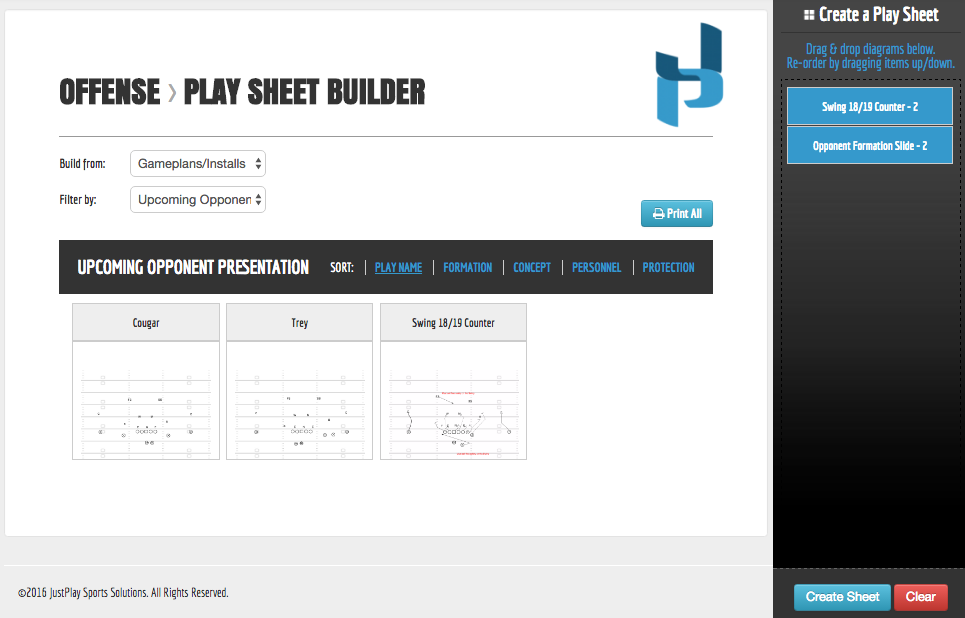
Step 3 - Once you are ready to build, drag and drop diagrams you want to include in your print job into the right column labeled "Create a Play Sheet".
Step 4 - You can drag each diagram up and down within the right column to reorder it. Once you have selected all the diagrams you wish to print, click "Create Sheet."
Fore more instructions on printing using the playsheet builder please click here.
Printing Full Plays In My Gameplan/Install
Step 1 - Navigate into your gameplan or install
Step 2 - Click the printer icon located at the far right of the individual play to print the play by itself

OR
Step 2 - Click the blue "print all" button to print all of your plays

Note - Make sure to update your sort order to reflect the order that you want your plays printed in
Step 3 - Select if you would like to show multiple play diagrams use the "multi-diagrams" on/off switch at the top right
Step 4 - Print Plays
0 Comments